We know the PS5 will be here December 2020, but what new features should be included? Sony could request all new games natively support keyboards and mice because crossplay will be available. Another addition to crossplay would be to allow Discord integration so everyone could easily chat between systems. There are now so many apps available that letting an app use a popup feature like a Twitter reply, for example. Game streaming has become really popular as well. Sony should include overlay integration with the most popular chat systems. This would encourage more game streaming. Finally, the PS5 should include a Google Chromecast hardware which would allow hundreds of apps to immediately be able to use the console. I would love to hear your ideas for the PS5, leave me a response.
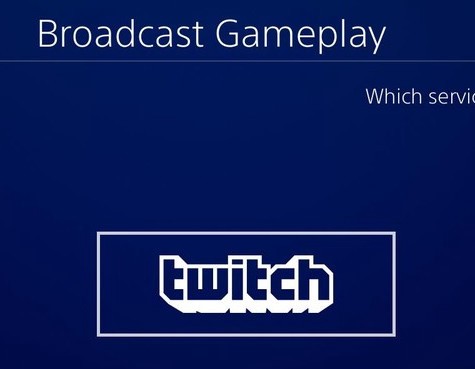
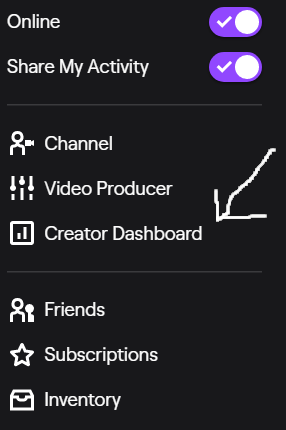
When streaming on the PS4 Twitch sometimes leaves the games category missing. The reason is that the PS4 will send the game that you are playing with a ™ or the Ⓡ symbol. When this happens you can correct this using the Twitch Creator Dashboard from a PC.
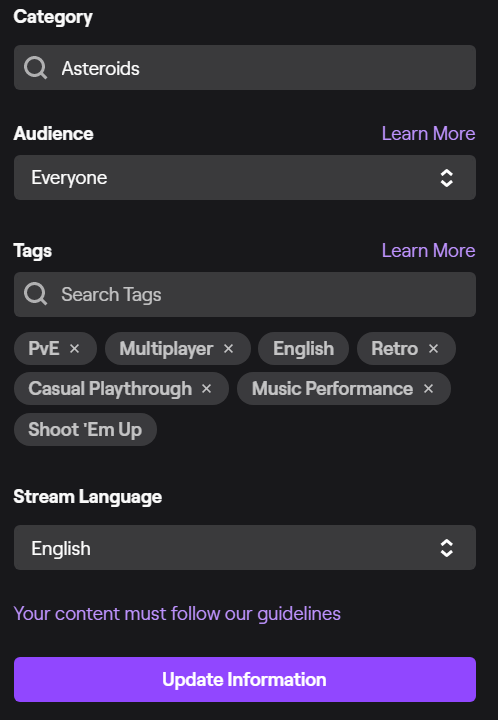
From the Creator Dashboard you can set the game in the Category section and then click “Update Information.”
You may have to click “Update Information” a few times to grt it to stick. If you donot have access to a PC, you can also use a chatbot to set the game. Using StreamElements you can use the “!setgame” command, in NightBot and Streamlabs use the command “!game”.
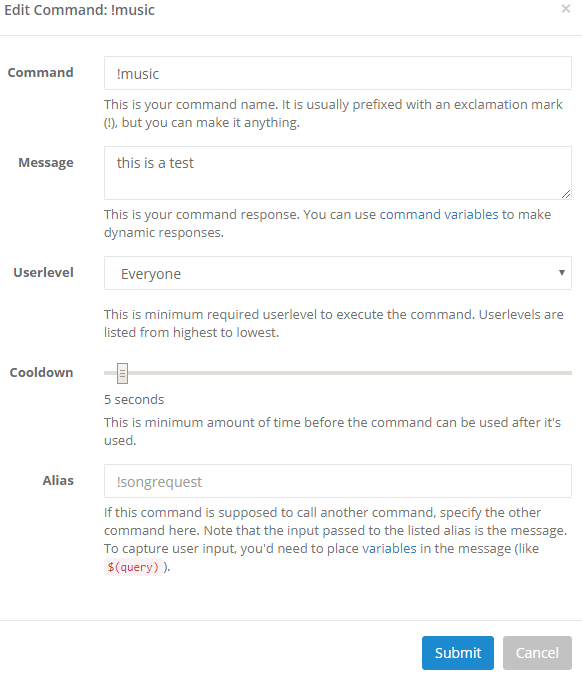
Nightbot is a very popular Chatbot Twitch. Here is a way to change timers with the command line. Our example is to make changes to a music timer. We will be creating multiple commands to pull this off. During my stream I play music in the background and I want viewers to find out what they are listening to using a timer to activate the !music command. First create a !music command in Nightbot.
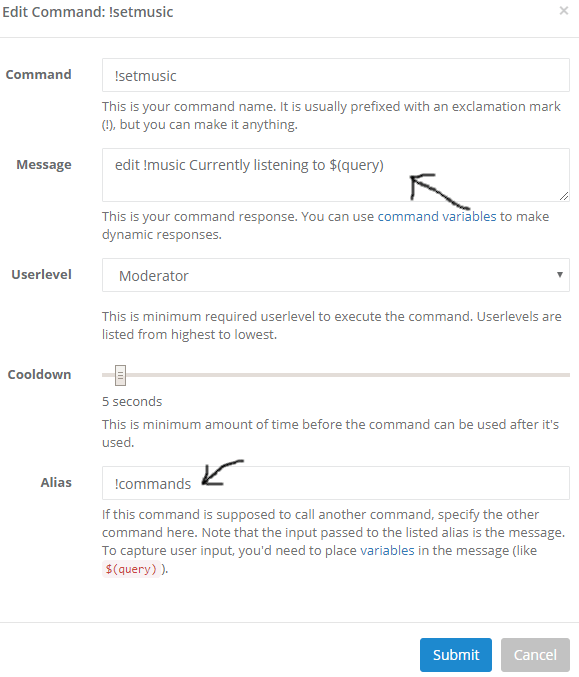
Next make a !setmusic command in Nightbot. Add “edit !music Currently listening to $(query)” Be sure to add “!commands” to the Alias section.
Here’s what using the !setmusic command will look like in chat.
Here is how !setmusic changed the !music command.
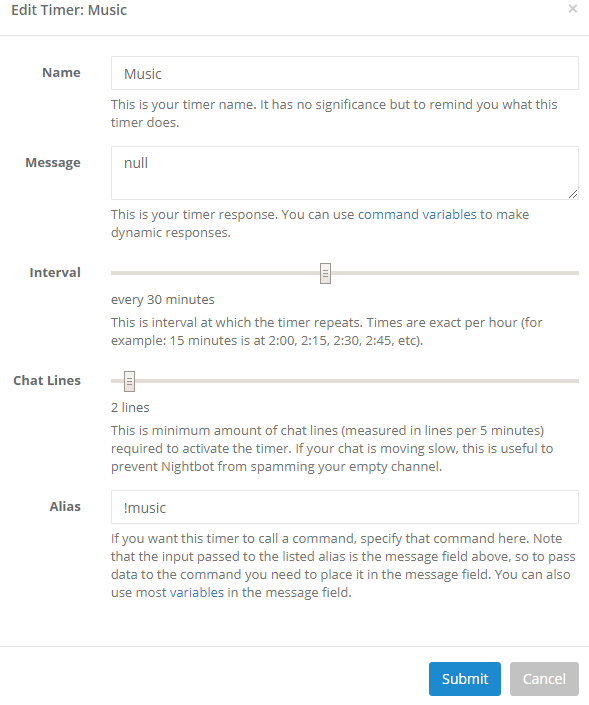
Now you can setup a “Music” timer. Be sure to add “null” in the Message section and “!music” to the Alias section.
Now the Music timer will activate the “!music” command.
So you have a Discord community and you would like to pull Instagram photos into your channels. I have a Discord server for my Twitch community and I wanted my Instagram photos to show up in my #instagram channel for folks that are not on Instagram. For this tutorial I am just going to show you what I did to bring Instagram photos into Discord using IFTTT which stands for If This Then That. First thing we are going to do is go to the Discord channel you want to bring Instagram photos into, here we are using “#instagram”. Click on the settings cog by the channel name.
Select “Webhooks” on the left tab, then click on “Create Webhook”.
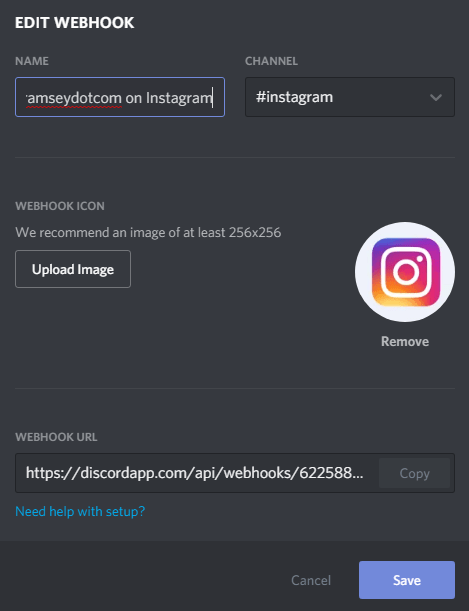
In the “EDIT WEBHOOK” dialog box, put whatever you would like under “NAME”, in the “CHANNEL” selection be sure it’s the channel you want the tweet to show up in. “WEBHOOK ICON” is an image that will show up in the post, I just used the Instagram logo. Then copy the “WEBHOOK URL” to notepad. We will use this later.
Now we will will use IFTTT to link Instagram to our Webhook. Visit http://ifttt.com and create an account. Now link your Instagram to the Instagram service. Now it is time to create your applet that will pass the Instagram photo to Discord. Click on “Create”.
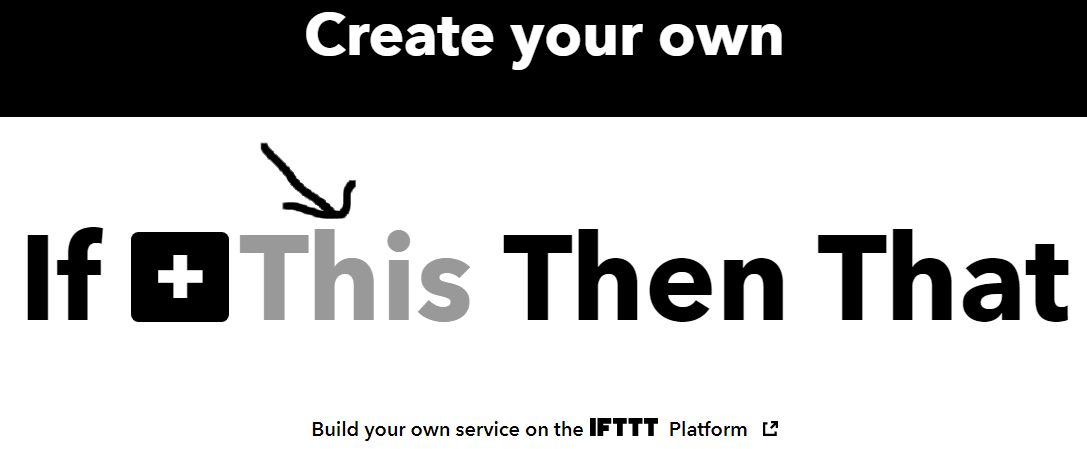
Click on “+this”
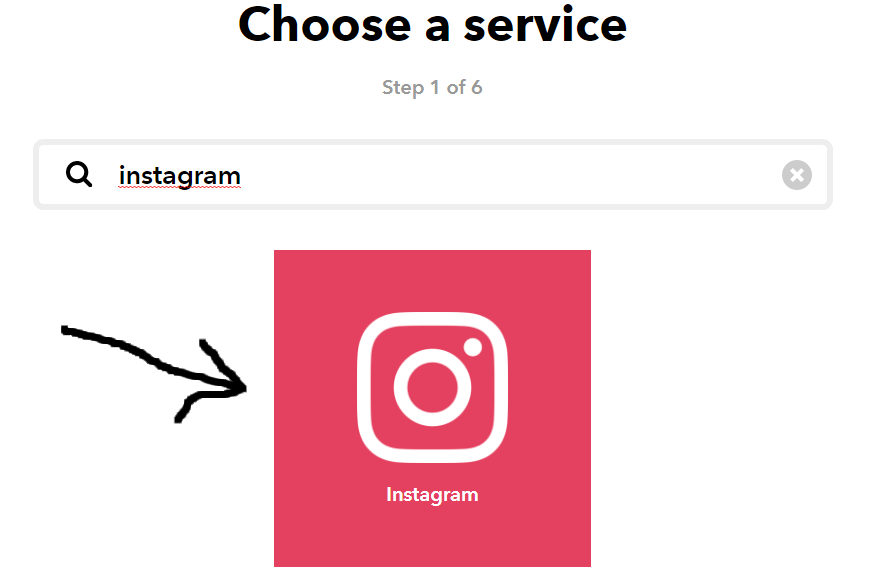
Click on the Instagram service (you should have already linked your Instagram to this service).
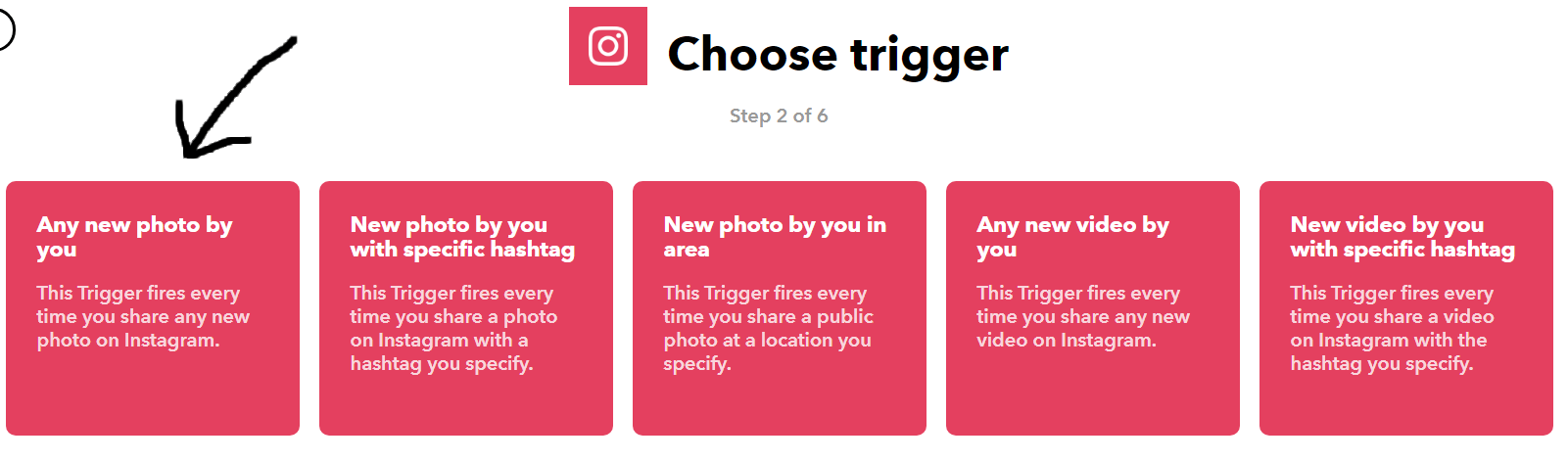
Now we want to choose a trigger. Click on “Any new photo by you” this tells IFTTT when to activate the Instagram post.
Now click on “+that”.
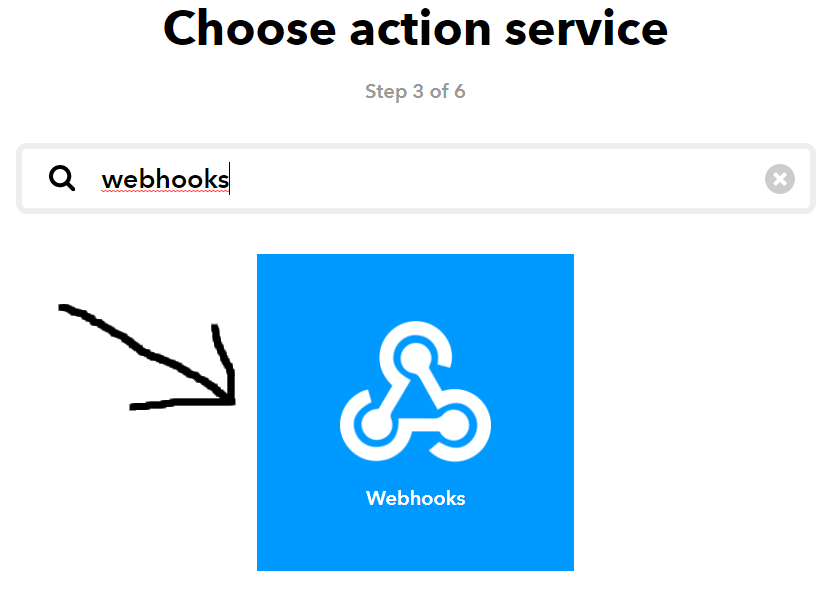
Now we will choose “Webhooks” as our action service.
It’s the only thing we can select so click on “Make a web request”.
Here is where that URL we copied to notepad is useful, copy it in the URL field, then select “Post”.
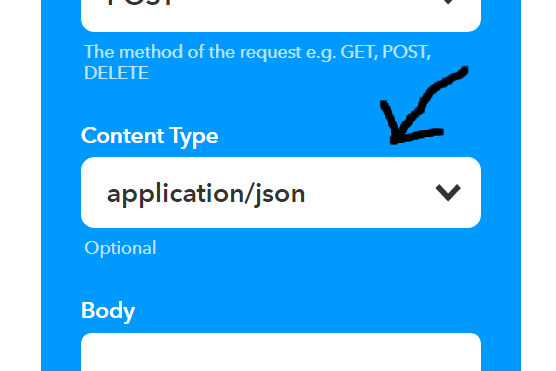
Our Content Type is going to be “application/json”.
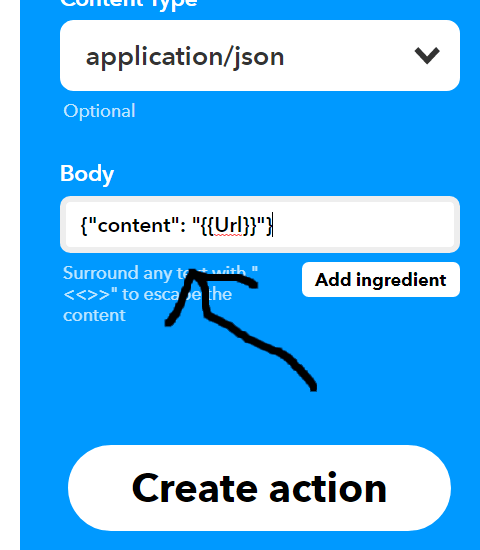
Now copy the code below into the “Body” field then click on “Create action”
{“content”: “{{Url}}”}
Now you can name your Applet whatever you want. Now turn off the notifications. Hit “Finish” and you have created your IFTTT Applet.
Here is what the final product looks like for me in Discord.
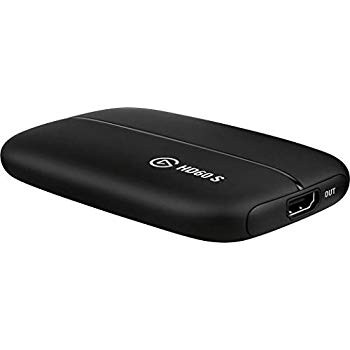
I have seen many videos trying to get this to work for me but this finally got it working for me. This fix is for PS4 users who want to hear their game audio and their party chat in their stream. (this has only been tested on Windows 10) This tutorial can be used with PS4 headphones with the Elgato Chat Link as shown below.
Elgato Chat Link
You may also use a USB sound mixer plugged into the PS4 with an output cable plugged into the Elgato, either way will work the same. Now install the Game Capture for Windows software on the Elgato site. Run Game Capture HD and in the to right hand corner in the device area click the cog wheel.
In the Game Capture HD60 S Settings select “Analog Audio” in the Audio Input.
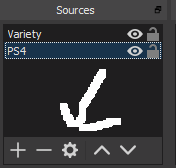
Now close Game Capture HD and run OBS. Setup your PS4 in Sources and click on the cog wheel for settings on that source.
Then select “Configure Video”.
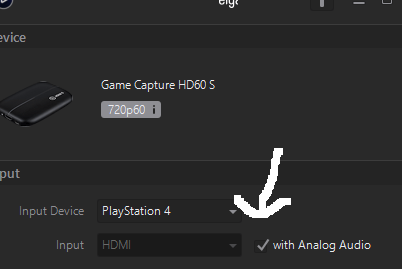
Magically a dialog box from the Elgato software will appear and be sure to check “with Analog Audio.”
That will get your audio from the game and the chat going in your stream!
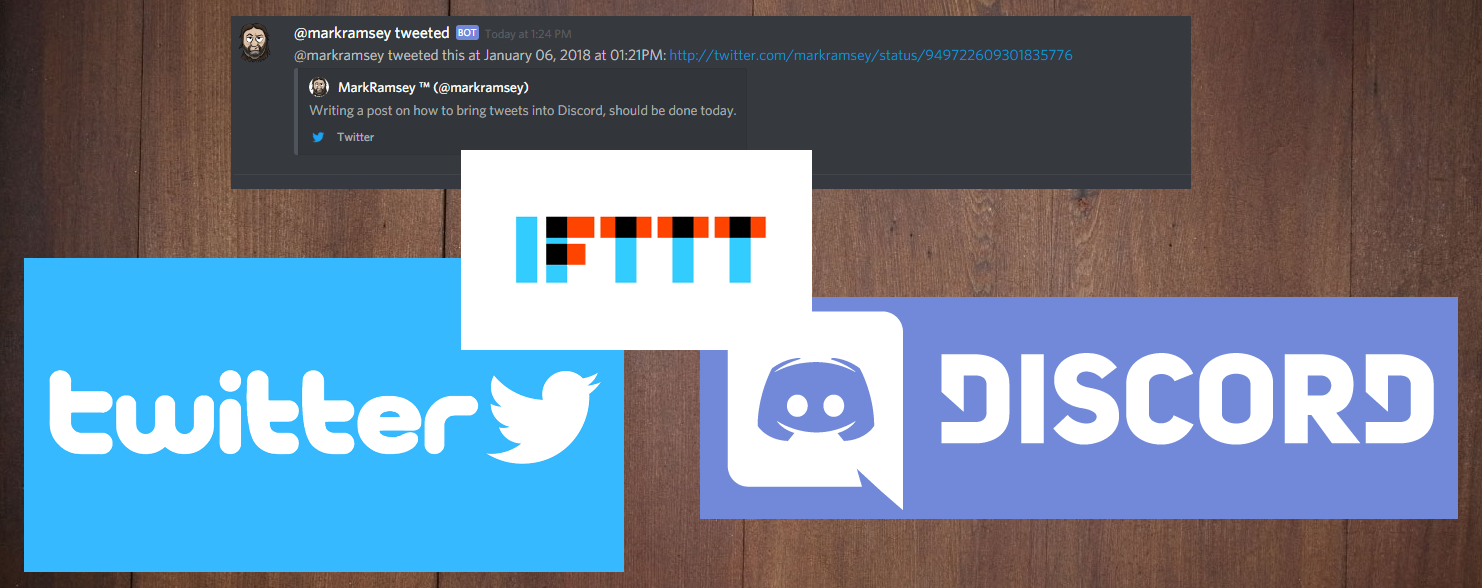
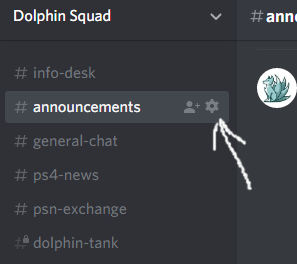
So you have a Discord community and you would like to pull tweets into your channels. I have a Discord server for my Twitch community and I wanted my Tweets to show up in my announcements channel for folks that are not on Twitter. Also I have game specific channels I wanted to bring tweets into. For this tutorial I am just going to show you what I did to bring tweets into Discord using IFTTT which stands for If This Then That. First thing we are going to do is go to the Discord channel you want to bring tweets into, here we are using “#announcements”. Click on the settings cog by the channel name.
Select “Webhooks” on the left tab, then click on “Create Webhook”.
In the “EDIT WEBHOOK” dialog box, put whatever you would like under “NAME”, in the “CHANNEL” selection be sure it’s the channel you want the tweet to show up in. “WEBHOOK ICON” is an image that will show up in the post, I just used my Twitter profile pic. Then copy the “WEBHOOK URL” to notepad. We will use this later.
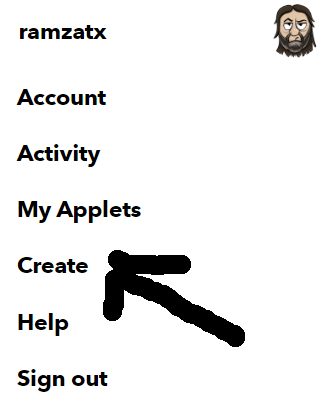
Now we will will use IFTTT to link Twitter to our Webhook. Visit http://ifttt.com and create an account. Now link your Twitter to the Twitter service. Now it is time to create your applet that will pass the tweet to Discord. Click on “Create”.
Click on “+this”
Click on the Twitter service (you should have already linked your Twitter to this service).
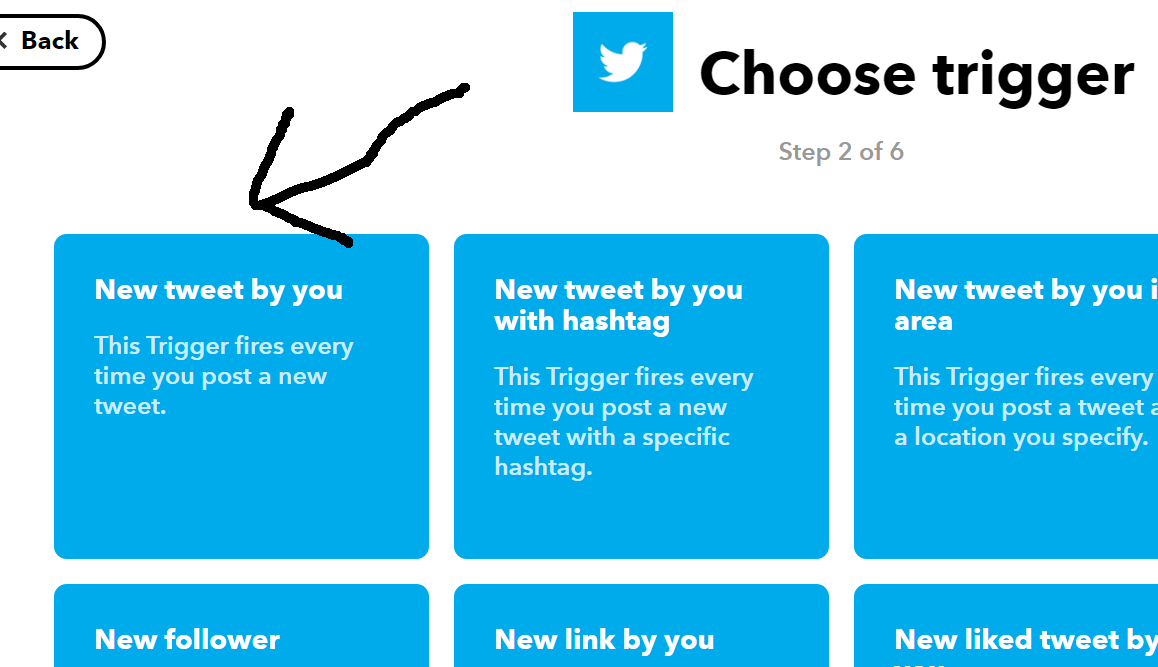
Now we want to choose a trigger. Click on “New Tweet by you” this tells IFTTT when to activate the Tweet.
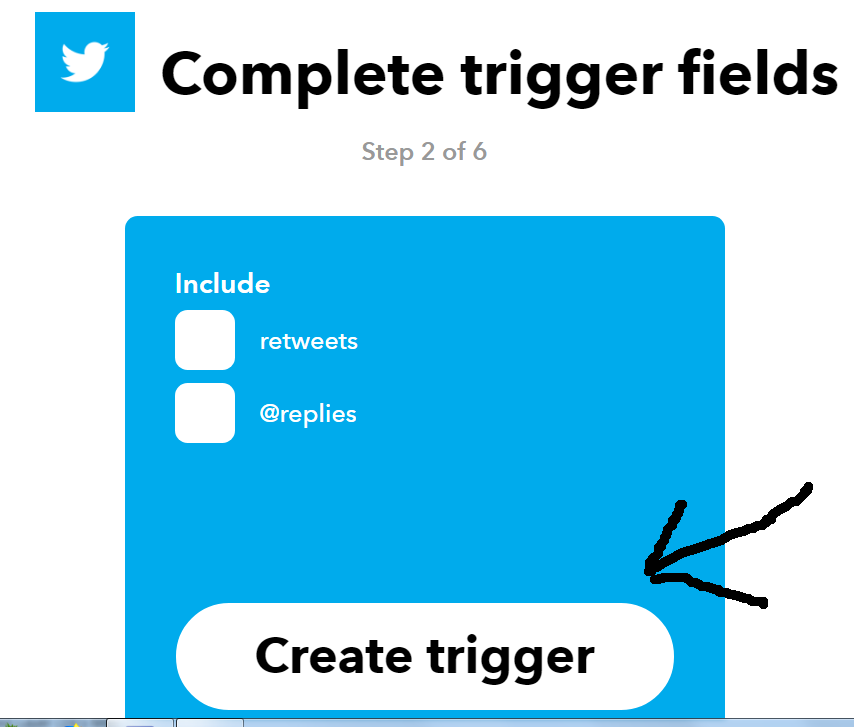
Now click “Create trigger” If you want to include retweets or @replies just check those boxes.
You can now skip to click “+that”. If you want to use a Twitter account that is not yours. Click on “New tweet by a specific user”.
Now we will say which Twitter account we are grabbing Tweets from. Type in you Twitter account or whichever one you want.
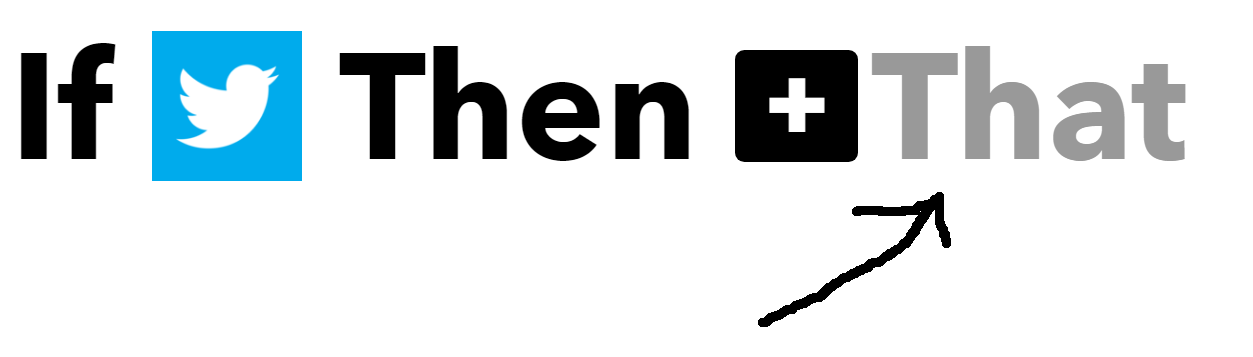
Now click on “+that”.
Now we will choose “Webhooks” as our action service.
It’s the only thing we can select so click on “Make a web request”.
Here is where that URL we copied to notepad is useful, copy it in the URL field, then select “Post”.
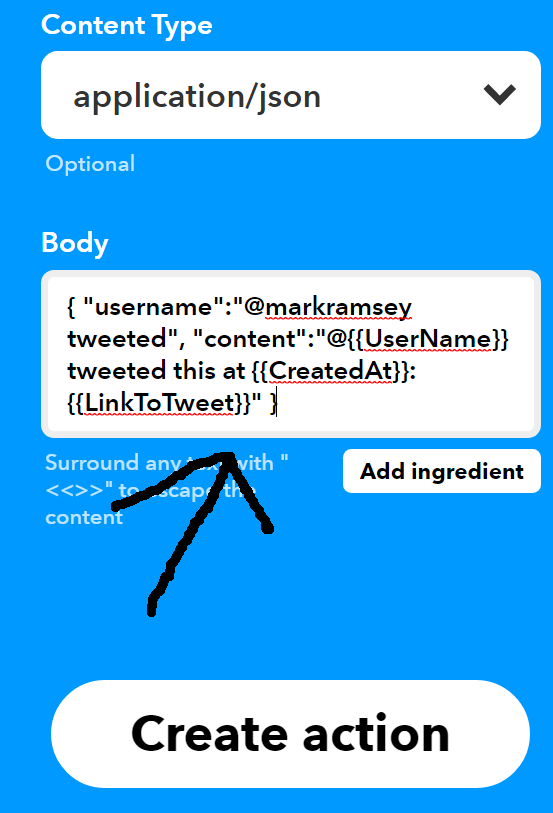
Our Content Type is going to be “application/json”.
Now copy the code below into the “Body” field and be sure you change ”@markramsey tweeted” to whatever Twitter name you want. Then click on “Create action”
{ "username":"@markramsey tweeted", "content":"@{{UserName}} tweeted this at {{CreatedAt}}: {{LinkToTweet}}" }
Now you can name your Applet whatever you want. Now turn off the notifications. Hit “Finish” and you have created your IFTTT Applet.
Here is what the final product looks like for me in Discord.
Have Amazon Prime? You can now help support my Twitch channel and get some great free perks as well. One of the many free services that comes with Amazon Prime is Twitch Prime. Once you have Twitch Prime you get one free $4.99 level subscription a month you can give to any Twitch partner or affiliate. Since half of all US households have Amazon Prime, this is a real windfall for Twitch streamers.
How do I activate Twitch Prime?
If you do not have a Twitch account, create one now at http://twitch.tv
Once you have a Twitch account, simply go to http://twitchprime.com to link your Amazon Prime and Twitch accounts.
How do I subscribe to the Twitch channel with Twitch Prime?
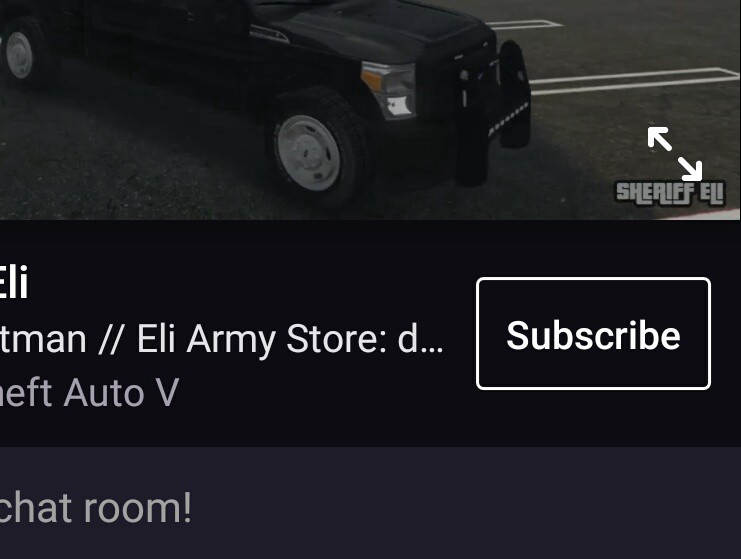
There is no subscribe button in the IOS app, so you must visit http://subs.twitch.tv/markramsey to subscribe using Twitch Prime.
Unfortunately subscribing to my channel does not auto-renew, if you would like for me to send you a monthly reminder, just let me know and I will be happy to ping you when your subscription runs out. I really appreciate the support for my Twitch channel, it allows me to constantly improve and helps me continue to create great content in the future.



























 Mark Ramsey™